

AI's Basic Tools
📝 Course Notes
Key takeaways from this lesson:
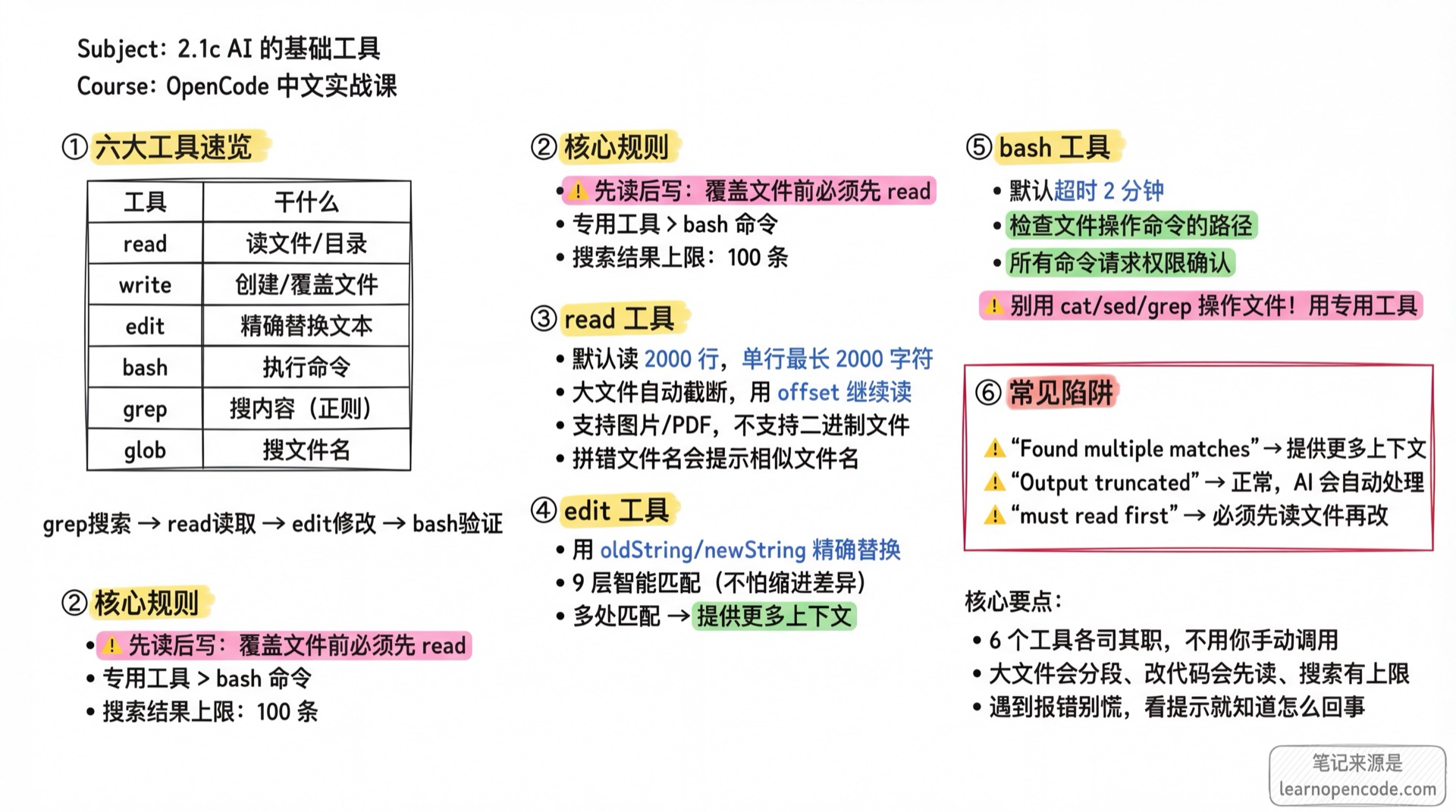
📖 No Hands-on Required
This lesson explains how AI works behind the scenes with these tools, not how to manually call them.
You simply use natural language like "help me modify this file" or "search for all TODOs", and AI automatically chooses the appropriate tool.
Why learn this? Knowing AI's capabilities helps you:
- Write better prompts (e.g., knowing AI can search code)
- Stay calm when errors occur (e.g., "file too large" is normal)
- Understand why AI reads files before editing (it's a safety mechanism, not inefficiency)
What You'll Be Able to Do
🎯 Learning Outcomes
- Know what AI can help you do (read files, edit code, run commands, search codebase)
- Understand prompts like "file too large" or "multiple matches found"
- Understand why AI sometimes needs to "read before write"
- Feel more confident directing AI
Your Current Challenges
You can already chat with AI, but you might have questions like:
- "What if the file is too large? Will AI miss something?"
- "Will AI edit the wrong place? How does it know where to edit?"
- "What commands can AI execute? Will it mess up my computer?"
- "How do I make AI search for a function across files?"
The answers lie in AI's core tools. Understanding them helps you work with AI more confidently.
When to Read This Lesson
- Curious about how AI manipulates your files
- Encountered "file too large" or "no match found" messages
- Want to know if AI can search code or run commands
- Want to write more precise prompts for better efficiency
🎒 Prerequisites
- [ ] Completed 2.1 Interface & Basic Operations
- [ ] Have a project directory ready (any project works)
- [ ] OpenCode can chat with AI normally
Core Concepts
OpenCode provides AI with 10 core tools. This lesson focuses on the 6 most commonly used file operation tools:
| Tool | Purpose | Analogy |
|---|---|---|
| read | Read files or directories | Opening a file to view contents |
| write | Create or overwrite files | Save As |
| edit | Precisely replace text in files | Find and Replace |
| bash | Execute Shell commands | Running commands in terminal |
| grep | Search files by content | Global search |
| glob | Search files by name | Searching filenames in file manager |
You don't need to manually call these tools. Just describe your needs in natural language, and AI will automatically select the right tool.
More Tools Available
Besides these 6 file operation tools, OpenCode also has:
| Tool | Purpose | Tutorial |
|---|---|---|
| Task | Create sub-agents for complex tasks | Agent Permissions & Security |
| WebFetch | Fetch web page content | Web Search |
| TodoWrite | Task list management (AI uses automatically) | — |
| Skill | Load specialized knowledge packages | Skills Series |
What is TodoWrite?
When you give AI a complex task, you might see it automatically create a plan like:
1. [ ] Analyze code structure
2. [x] Read configuration file
3. [ ] Modify entry file
4. [ ] Run tests for verification
This is the TodoWrite tool at work. It creates a task list, checking off items as they're completed, preventing AI from "forgetting" or "going off track". You don't need to call it manually; AI uses it automatically when needed.
But understanding their capabilities and limitations helps you write better prompts and quickly diagnose problems.
Core Principle: Each Tool Has Its Purpose
Don't let AI use bash commands (cat, sed, grep) for file operations. Dedicated tools have permission checks, smart error handling, and performance optimizations that bash commands lack.
Follow Along
Step 1: Let AI Read a File
Why read is the most basic tool. AI needs to "see" file contents before it can analyze or modify them.
In OpenCode, enter:
Help me see what's in package.jsonYou should see: AI calls the read tool to read the file, then analyzes the content for you.
📦 read Tool Capabilities
Basic Parameters:
filePath: Absolute path to the fileoffset: Which line to start reading from (default: line 1)limit: Maximum number of lines to read (default: 2000 lines)
Large File Handling: If a file exceeds 2000 lines, read will automatically truncate and prompt "Use offset parameter to read beyond line 2001". AI will automatically use the offset parameter to continue reading the rest.
Special Files: read can also read images (PNG, JPG, GIF) and PDFs, converting them to base64 for AI model analysis. However, it doesn't support SVG and binary files (.zip, .exe, etc.).
Smart Suggestions: If you misspell a filename, read will suggest similar filenames. For example, if you say packge.json, it will suggest package.json.
Reading Directories: read can read directories, not just files. When you mention a directory with @directory_name in a conversation, AI uses the read tool to get directory contents (listing subdirectories and files) in a friendly format. This is useful when you want AI to understand your project structure.
Step 2: Let AI Create a File
Why The write tool is used to create new files or completely overwrite existing ones.
Help me create a hello.txt with the content "Hello OpenCode"You should see: AI calls the write tool to create the file and shows success.
⚠️ "Read Before Write" Rule
If a file already exists, AI must first use read to read the file, then use write to overwrite it. This prevents AI from accidentally overwriting files without knowing their current contents.
If AI skips reading and tries to write to an existing file, OpenCode will report an error.
Automatic Post-Write Check: After write completes, it automatically triggers LSP diagnostics. If the written code has syntax errors or type issues, AI will see them immediately and attempt to fix them.
Step 3: Let AI Edit a File
Why edit is OpenCode's smartest tool. Instead of simply "changing line X", it uses string matching to precisely locate where to modify.
Change "Hello OpenCode" in hello.txt to "Hello World"You should see: AI calls the edit tool with oldString: "Hello OpenCode" and newString: "Hello World" to complete the replacement.
📦 edit's Smart Matching
The edit tool has 9 matching strategies, trying from strict to loose:
| Strategy | Description | Example |
|---|---|---|
| Exact match | Completely identical | foo matches foo |
| Ignore leading/trailing whitespace | Ignore spaces at start and end of each line | foo matches foo |
| First/last line anchors | Use first and last lines to locate code blocks | Function start and end matching |
| Normalize whitespace | Treat multiple spaces as one | a b matches a b |
| Indentation tolerance | Ignore overall indentation differences | 2-space indent matches 4-space |
| Escape character handling | Handle \n, \t, etc. | a\nb matches actual newline |
| Boundary trimming | Match after removing leading/trailing whitespace | Can match even with blank lines before/after |
| Context-aware | Use first/last lines + middle content similarity | Can match even if code block has slight changes |
| Multiple matches | Find all exact matches | Use with replaceAll |
Simply put: The code snippet you give AI doesn't need to be exactly identical to what's in the file. Minor indentation or spacing differences are fine.
What if there are multiple matches?
If oldString appears multiple times in the file, edit will report an error:
Found multiple matches for oldString.
Provide more surrounding lines in oldString to identify the correct match.
Solutions:
- Let AI provide more context (include a few more lines of code) to ensure unique matching
- Or use the
replaceAllparameter to replace all matches at once
Step 4: Let AI Execute Commands
Why The bash tool lets AI execute Shell commands, like running tests, installing dependencies, or checking Git status.
Help me run git statusYou should see: AI calls the bash tool to execute the command, returning Git status information.
🚫 Don't Use bash for File Operations
This is the most common mistake beginners make. The bash tool is for executing commands, not for file operations.
| ❌ Don't Do This | ✅ Do This Instead |
|---|---|
Use cat to read files | Use read tool |
Use echo > file to write files | Use write tool |
Use sed to edit files | Use edit tool |
Use find to search for files | Use glob tool |
Use grep to search content | Use grep tool |
Why? Dedicated tools have permission checks, smart error handling, and LSP diagnostics that bash commands don't have.
bash Safety Mechanisms:
- Default timeout of 2 minutes to prevent hanging commands
- Uses tree-sitter to parse command syntax, checking if file operation commands like
rm,cp,mvoperate on paths within the project directory - All commands require permission confirmation (can set auto-approval rules)
- Output is automatically truncated if it exceeds 2000 lines or 50KB
Step 5: Let AI Search Code
Why grep and glob are two search tools—one searches content, the other searches filenames.
Search file content (grep):
Find all places where console.log is used in the projectYou should see: AI calls the grep tool, returning matching files and line numbers.
Search filenames (glob):
Find all test filesYou should see: AI calls the glob tool with patterns like **/*.test.ts.
| What You Want | AI Will Use | Example Prompt |
|---|---|---|
| Find where a function is used | grep | "Search for all calls to getUserData" |
| Find where a file is located | glob | "Find all configuration files" |
| Find a specific string | grep | "Search for all TODO comments" |
| List files of a certain type | glob | "List all .tsx files under src" |
Search Result Limits
Both grep and glob return a maximum of 100 results. If results are truncated, you can:
- Narrow the search directory ("search only in the src directory")
- Use more specific keywords
- Filter by file type ("search only .ts files")
Tool Collaboration: How AI Combines Tools
In real work, AI rarely uses just one tool. Here are some typical scenarios:
Scenario 1: Rename a Function
You: Change all getUserData to fetchUserInfo

AI's workflow:
1. grep search for "getUserData" → finds 20 files
2. read each file one by one
3. edit + replaceAll to replace
4. bash run tests to verify
Scenario 2: Add New Feature
You: Add an email field to the User component

AI's workflow:
1. glob search for "User.tsx" → finds the file
2. read file contents
3. edit to modify interface definition and component code
4. Automatic LSP type checking
Scenario 3: Debug an Issue
You: After login, it doesn't redirect to homepage, help me check

AI's workflow:
1. grep search for "login" related code
2. read login logic
3. grep search for "redirect" or "navigate"
4. Analyze code logic, find the problem
Checklist ✅
Complete all before continuing
- [ ] Know AI has 10 core tools, focused on 6 file operation tools in this lesson
- [ ] Understand the "read before write" rule
- [ ] Know edit tool uses string matching, not line numbers
- [ ] Know not to let AI use bash for file operations
- [ ] Know grep searches content, glob searches filenames
Common Pitfalls
| Issue | Cause | Solution |
|---|---|---|
| AI says "File not found" | Wrong file path or typo | read will suggest similar filenames, follow the suggestion |
| AI says "Found multiple matches" | edit's oldString appears multiple times | Let AI provide more context, or use replaceAll |
| AI says "Output truncated" | File or command output too large | Normal behavior, AI will automatically read in segments |
AI uses cat to read files | AI not following tool division | Remind it "use read tool to read" |
| bash command times out | Default 2-minute timeout | Tell AI "this command may take 10 minutes" |
| write errors "must read first" | Didn't read before overwriting existing file | AI will automatically read then write; if error, remind it |
Lesson Summary
OpenCode has 10 core tools. This lesson focused on 6 file operation tools:
| Tool | Purpose | Key Points |
|---|---|---|
| read | Read files/directories | Auto-segments large files, supports images and PDFs, can use @ to mention directories |
| write | Create/overwrite files | Must read before write, automatic LSP check after write |
| edit | Precise string replacement | 9-layer smart matching, tolerates indentation differences |
| bash | Execute Shell commands | Has timeout and safety checks, don't use for file operations |
| grep | Search file content | Regex support, max 100 results |
| glob | Search filenames | glob patterns, max 100 results |
Remember three rules:
- Dedicated tools > bash commands
- Read before write
- Search results have limits; narrow scope when necessary
Next Lesson Preview
Next, we'll learn about Managing Conversations.
You'll learn:
- How to create, switch, and rename sessions
- How to undo unsatisfactory responses
- How to export chat history
Appendix: Source Code Reference
Click to expand source code locations
Last updated: 2026-02-14
| Feature | File Path | Lines |
|---|---|---|
| Tool Registry (Complete List) | src/tool/registry.ts | 98-119 |
| read tool definition and parameters | src/tool/read.ts | 17-204 |
| read default limit constants | src/tool/read.ts | 13-15 |
| read binary file detection | src/tool/read.ts | 206-261 |
| read image/PDF handling | src/tool/read.ts | 113-139 |
| read filename suggestions | src/tool/read.ts | 49-67 |
| write tool definition | src/tool/write.ts | 19-85 |
| write LSP diagnostics | src/tool/write.ts | 56-73 |
| edit tool definition and parameters | src/tool/edit.ts | 27-155 |
| edit 9-layer matching strategies | src/tool/edit.ts | 184-580 |
| edit replace core function | src/tool/edit.ts | 618-655 |
| bash tool definition | src/tool/bash.ts | 55-269 |
| bash default timeout | src/tool/bash.ts | 22 |
| bash command parsing | src/tool/bash.ts | 93-145 |
| bash output truncation constants | src/tool/truncation.ts | 10-11 |
| bash output truncation logic | src/tool/truncation.ts | 50-105 |
| grep tool definition | src/tool/grep.ts | 12-150 |
| grep result limit | src/tool/grep.ts | 100-101 |
| glob tool definition | src/tool/glob.ts | 9-80 |
| glob result limit | src/tool/glob.ts | 35 |
Key Constants:
DEFAULT_READ_LIMIT = 2000: Default line limit for read toolMAX_LINE_LENGTH = 2000: Maximum characters per lineMAX_BYTES = 50 * 1024: Maximum 50KB bytes for read tool and general output truncationDEFAULT_TIMEOUT = 2 * 60 * 1000: Default 2-minute timeout for bash toolMAX_METADATA_LENGTH = 30_000: Maximum metadata length for bash toollimit = 100: Result limit for grep/glob tools
Key Functions:
replace(): Core replacement logic for edit tool, tries 9 Replacers sequentiallyisBinaryFile(): Detects if a file is binary (extension + byte analysis)Ripgrep.files(): glob tool uses ripgrep to search for filesTruncate.output(): bash output truncation logic, saves full output to file when exceeded