

5.7b Advanced MCP
💡 TL;DR: Master OAuth authentication, permission management, and common MCP service configuration.
📝 Course Notes
Key concepts from this lesson:
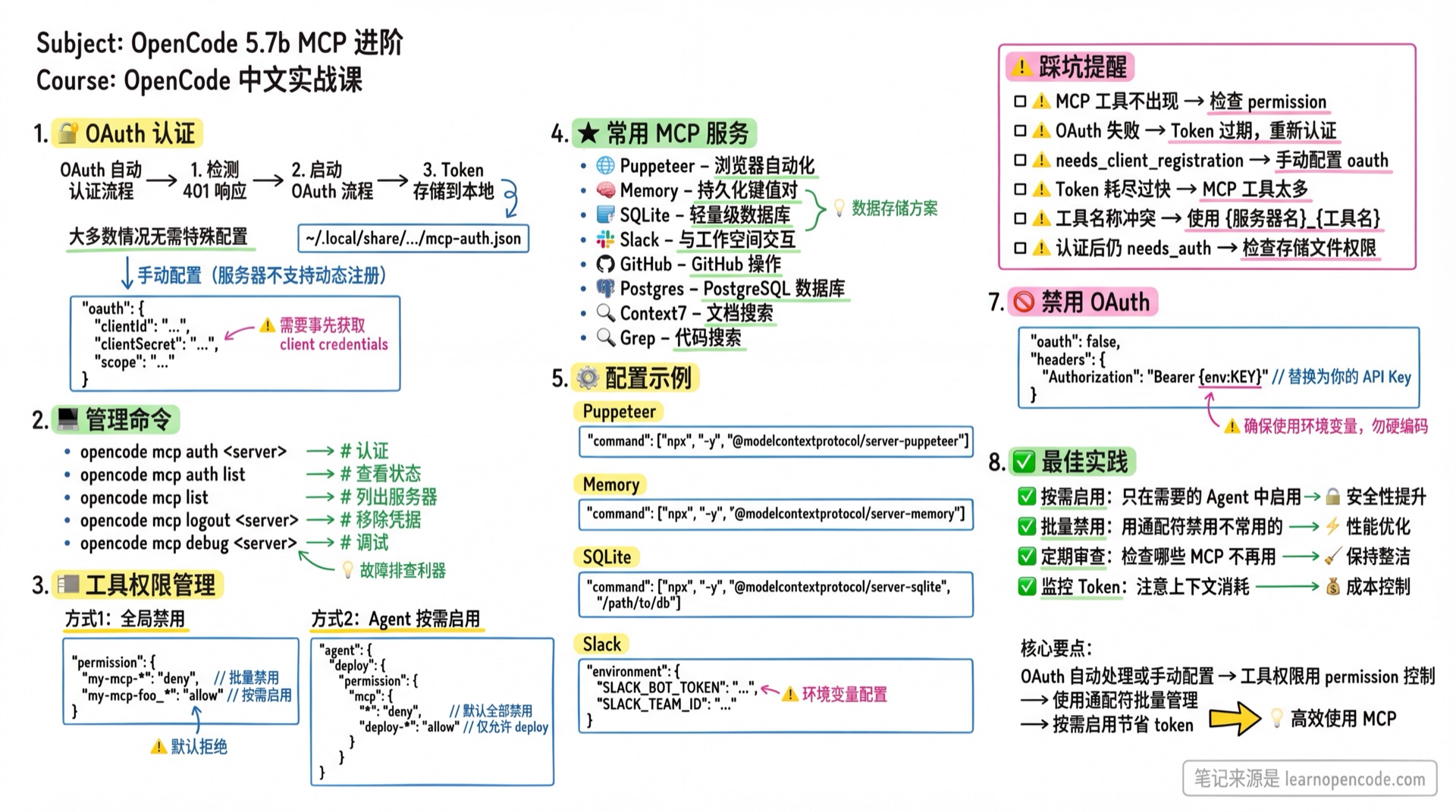
What You'll Learn
- Use OAuth authentication to connect to secure services
- Manage MCP tool permissions and enable/disable status
- Integrate MCP usage in rule files
- Configure common MCP services
OAuth Authentication
OpenCode automatically handles the OAuth authentication flow:
- Detects 401 response and initiates OAuth flow
- Uses Dynamic Client Registration (RFC 7591) (if server supports it)
- Tokens are securely stored in
~/.local/share/opencode/mcp-auth.json
Automatic Authentication
In most cases, no special configuration is needed:
{
  "mcp": {
    "my-oauth-server": {
      "type": "remote",
      "url": "https://mcp.example.com/mcp"
    }
  }
}
OpenCode will automatically prompt for authentication on first use.
Pre-registered Client
If the server doesn't support dynamic registration, configure client credentials:
{
  "mcp": {
    "my-oauth-server": {
      "type": "remote",
      "url": "https://mcp.example.com/mcp",
      "oauth": {
        "clientId": "{env:MY_MCP_CLIENT_ID}",
        "clientSecret": "{env:MY_MCP_CLIENT_SECRET}",
        "scope": "tools:read tools:execute"
      }
    }
  }
}
Management Commands
# Manually trigger authentication
opencode mcp auth my-oauth-server

# View authentication status for all servers
opencode mcp auth list

# List all MCP servers
opencode mcp list

# Remove stored credentials
opencode mcp logout my-oauth-server

# Debug connection and OAuth flow
opencode mcp debug my-oauth-server
Debug Command Details
When MCP connection issues arise, use the debug command to diagnose:
opencode mcp debug my-oauth-serverSample Output:
MCP OAuth Debug

Server: my-oauth-server
URL: https://mcp.example.com/mcp
Auth status: ✓ authenticated
  Access token: eyJhbGciOiJSUzI1NiIs...
  Expires: 2026-02-15T12:00:00.000Z
  Refresh token: present

Testing connection...
HTTP response: 200 OK
✓ Server responded successfully
Status Meanings:
| Status | Description |
|---|---|
authenticated | Authenticated, ready to use |
expired | Token expired, needs re-authentication |
not authenticated | Not authenticated, run opencode mcp auth |
Server Status Icons
Icons in opencode mcp list output:
| Icon | Status | Description |
|---|---|---|
| ✓ | connected | Connected, tools available |
| ○ | disabled | Disabled via enabled: false |
| ⚠ | needs_auth | Requires OAuth authentication |
| ✗ | failed | Connection failed, check error message |
Sample Output:
MCP Servers

✓ filesystem connected
    npx -y @modelcontextprotocol/server-filesystem /projects
✓ context7 connected
    https://mcp.context7.com/mcp
○ disabled-server disabled
    npx -y some-command
✗ failed-server failed
    Connection timeout
Disabling OAuth
If the server uses API Key instead of OAuth:
{
  "mcp": {
    "my-api-key-server": {
      "type": "remote",
      "url": "https://mcp.example.com/mcp",
      "oauth": false,
      "headers": {
        "Authorization": "Bearer {env:MY_API_KEY}"
      }
    }
  }
}
Tool Permission Management
MCP tools are registered using {server_name}_{tool_name} format.
Global Disable
Use permission configuration to disable MCP tools:
{
  "mcp": {
    "my-mcp-foo": {
      "type": "local",
      "command": ["bun", "x", "my-mcp-command-foo"]
    },
    "my-mcp-bar": {
      "type": "local",
      "command": ["bun", "x", "my-mcp-command-bar"]
    }
  },
  "permission": {
    "my-mcp-foo_*": "deny"
  }
}
Use wildcards to batch disable:
{
  "permission": {
    "my-mcp*": "deny"
  }
}
Enable Tools for a Specific Agent
After global disable, enable in specific agents:
{
  "mcp": {
    "my-mcp": {
      "type": "local",
      "command": ["bun", "x", "my-mcp-command"]
    }
  },
  "permission": {
    "my-mcp*": "deny"
  },
  "agent": {
    "my-agent": {
      "permission": {
        "my-mcp*": "allow"
      }
    }
  }
}
Wildcard Rules
*matches zero or more characters?matches exactly one character- Other characters match literally
Integration in Rule Files
Configure default MCP usage in AGENTS.md or .opencode/agents/*.md:
## MCP Usage Rules

When querying documentation, use the `context7` tool.

When unsure how to implement a feature, use `gh_grep` to search GitHub for code examples.
This way the AI automatically selects appropriate MCP tools without specifying them in every prompt.
Tool Auto-Discovery and Updates
Tool Naming Convention
MCP tools are registered using {server_name}_{tool_name} format:
filesystem server's read_file tool → filesystem_read_file
context7 server's search tool     → context7_search
Any character in a server or tool name that is not a letter, number, underscore, or hyphen is replaced with an underscore. v1.18.22 still uses the legacy format shown above. The mcp__server_name__tool_name form appeared briefly during development and was later reverted; do not base current permission rules or prompts on it.
Source: current tool-name sanitization and concatenation rules.
Auto-Discovery Mechanism
After configuring an MCP server, OpenCode automatically discovers all tools the server provides:
- Connect to MCP server
- Call
listToolsto get tool list - Convert tools to OpenCode format
- Add to current session's tool set
Tool Change Notifications
If the MCP server's tool list changes (tools added/removed), OpenCode automatically receives notifications and updates:
- Server sends tool list change notification (
notifications/tools/list_changed) - OpenCode re-fetches the tool list
- No need to restart OpenCode
This means: after upgrading an MCP server version, new tools become automatically available.
Server Instructions
An MCP server can return instructions in its initialization result. OpenCode adds instructions from connected servers to the system prompt. If a server provides tools but every one of those tools is disabled by the current Agent or session permissions, its instructions are not injected.
Source: permission filtering and injection of instructions.
Resources and Templates
As long as at least one connected server declares the resources capability, OpenCode provides three general-purpose tools:
| Tool | Purpose |
|---|---|
list_mcp_resources | List resources from every server or from one specified server |
list_mcp_resource_templates | List resource templates with URI parameters |
read_mcp_resource | Read a resource by server name and exact URI |
Resources can be files, database schemas, or context supplied by the service itself. For a template, first fill in its URI parameters, then pass the resulting URI to read_mcp_resource. The app also supports finding and adding MCP resources through @ completion.
Source: tool names, resource capability check, templates, reading resources, and in-app resource completion.
Experimental MCP Code Mode
Set this environment variable, then restart OpenCode:
export OPENCODE_EXPERIMENTAL_CODE_MODE=trueEnabling the flag does not guarantee that execute will appear. It is registered for the model only when at least one MCP tool is visible under the current Agent and session permissions. Once enabled, ordinary MCP tools are no longer exposed individually; instead, execute orchestrates their calls.
execute runs code in a restricted interpreter, not in a regular shell. It can access only the namespaced MCP tools that are visible, and every actual MCP call still passes through the original tool's permission check. Code Mode is useful for orchestrating several MCP calls at once, not for running arbitrary local programs or accessing unauthorized tools.
Source: filtering visible MCP tools, restricted runtime, and conditions for exposing execute.
Recommended MCP Services
Sentry
Connect to Sentry monitoring platform to query errors and issues:
{
  "mcp": {
    "sentry": {
      "type": "remote",
      "url": "https://mcp.sentry.dev/mcp",
      "oauth": {}
    }
  }
}
First-time use requires authentication:
opencode mcp auth sentryUsage example:
use sentry to view recent unresolved errorsContext7
Search documentation for various libraries and frameworks:
{
  "mcp": {
    "context7": {
      "type": "remote",
      "url": "https://mcp.context7.com/mcp"
    }
  }
}
Use API Key for higher rate limits:
{
  "mcp": {
    "context7": {
      "type": "remote",
      "url": "https://mcp.context7.com/mcp",
      "headers": {
        "CONTEXT7_API_KEY": "{env:CONTEXT7_API_KEY}"
      }
    }
  }
}
Usage example:
use context7 to query how Cloudflare Worker caches JSON responsesGrep by Vercel
Search code snippets on GitHub:
{
  "mcp": {
    "gh_grep": {
      "type": "remote",
      "url": "https://mcp.grep.app"
    }
  }
}
Usage example:
use the gh_grep tool to search how to configure custom domains in SST frameworkFilesystem
Local filesystem operations (sandbox mode):
{
  "mcp": {
    "filesystem": {
      "type": "local",
      "command": [
        "npx", "-y", "@modelcontextprotocol/server-filesystem",
        "/path/to/allowed/directory"
      ]
    }
  }
}
Postgres
Query PostgreSQL databases directly:
{
  "mcp": {
    "postgres": {
      "type": "local",
      "command": ["npx", "-y", "@modelcontextprotocol/server-postgres"],
      "environment": {
        "POSTGRES_CONNECTION_STRING": "{env:DATABASE_URL}"
      }
    }
  }
}
Puppeteer
Browser automation and web scraping:
{
  "mcp": {
    "puppeteer": {
      "type": "local",
      "command": ["npx", "-y", "@modelcontextprotocol/server-puppeteer"]
    }
  }
}
Memory
Persistent key-value storage:
{
  "mcp": {
    "memory": {
      "type": "local",
      "command": ["npx", "-y", "@modelcontextprotocol/server-memory"]
    }
  }
}
SQLite
Lightweight database operations:
{
  "mcp": {
    "sqlite": {
      "type": "local",
      "command": ["npx", "-y", "@modelcontextprotocol/server-sqlite", "/path/to/database.db"]
    }
  }
}
Slack
Interact with Slack workspace:
{
  "mcp": {
    "slack": {
      "type": "local",
      "command": ["npx", "-y", "@modelcontextprotocol/server-slack"],
      "environment": {
        "SLACK_BOT_TOKEN": "{env:SLACK_BOT_TOKEN}",
        "SLACK_TEAM_ID": "{env:SLACK_TEAM_ID}"
      }
    }
  }
}
Common Pitfalls
| Issue | Cause | Solution |
|---|---|---|
| MCP tools not appearing | Globally disabled or agent not configured | Check permission configuration |
| OAuth authentication failed | Token expired or invalid credentials | Run opencode mcp logout && opencode mcp auth |
Status shows needs_client_registration | Server doesn't support dynamic registration | Configure clientId in oauth |
| Context quickly exhausted | Too many MCP tools enabled | Disable unused MCPs and enable them only for the Agents that need them |
| Tool name conflicts | Multiple MCPs have same-named tools | Use {server_name}_{tool_name} format to distinguish |
| Still shows needs_auth after auth | Token storage failed | Check ~/.local/share/opencode/mcp-auth.json permissions |
| Command format error | command written as string instead of array | ❌ "command": "npx xxx" → ✓ "command": ["npx", "-y", "xxx"] |
| URL format error | URL missing protocol prefix | ❌ "url": "example.com/mcp" → ✓ "url": "https://example.com/mcp" |
| Browser can't auto-open | Running in SSH/remote environment | OpenCode displays URL, manually copy to browser |
| Timeout too short | timeout set to 1000ms | Use 2,000-10,000ms for remote servers; the default is 30,000ms |
| Forgot to enable server | enabled: false but wondering why it doesn't work | Enabled by default, check if mistakenly set to false |
Lesson Summary
You learned:
- OAuth Authentication: Automatic handling or manual client credential configuration
- Debug Commands:
opencode mcp debugto diagnose connection issues - Status Icons: Meanings of ✓ ○ ⚠ ✗ four states
- Permission Management: Using
permissionto control tool access - Tool Auto-Discovery: Tool naming rules and change notification mechanism
- Extended Context: Server instructions, resources, and templates
- Code Mode: Orchestrating authorized MCP tools in a restricted environment
- Rule Integration: Configuring default MCP usage in AGENTS.md
- Common MCPs: Sentry, Context7, Grep, Postgres, etc.
Related Resources
- 5.7a MCP Basics - MCP introduction and configuration
- 5.1 Configuration Basics - Configuration file basics
- 5.2 Custom Agents - Agent tool configuration
- 5.5 Permissions - Detailed permission settings
- Official MCP Docs - English original
Next Lesson Preview
In the next lesson, we'll cover Chrome DevTools MCP.
You'll learn how to:
- Connect AI directly to your Chrome browser
- Debug logged-in pages without signing in again
- Select an element or request in DevTools and have AI analyze it
- Take browser screenshots, execute scripts, and more