

CLI Automation: Running OpenCode in Scripts
📝 Course Notes
Key takeaways from this lesson:
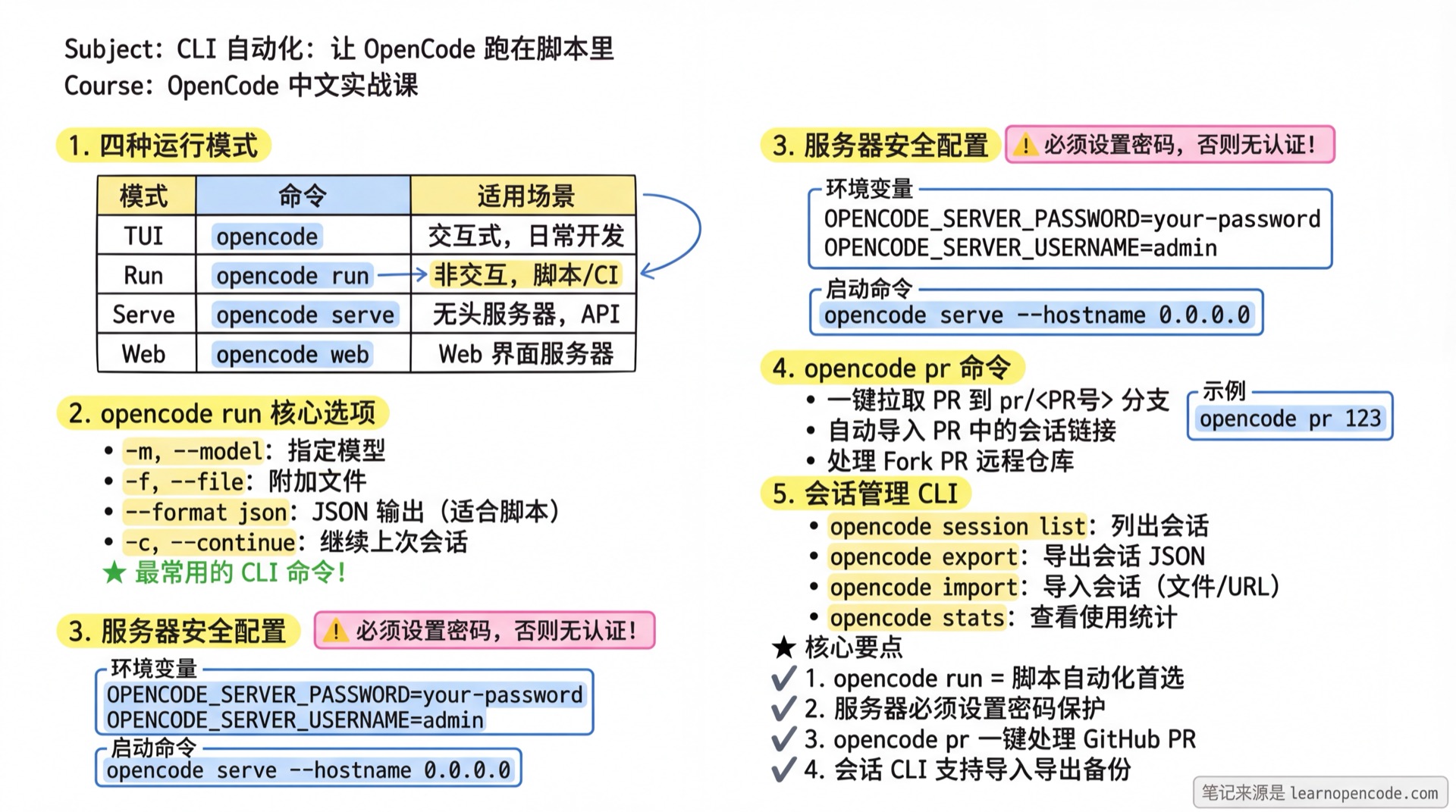
What You'll Be Able to Do
- Call OpenCode from scripts without manual intervention
- Start remote servers for team members to share the same AI session
- Embed OpenCode in CI/CD pipelines for automated code review
- One-click pull PRs and launch corresponding OpenCode sessions
Your Current Pain Points
- Manually opening TUI and typing commands every time - too much repetitive work
- Want to run OpenCode on a server but there's no GUI
- Want AI to automatically check code in CI/CD but don't know how to integrate
- Want team members to connect to the same OpenCode instance for collaboration
When to Use This Technique
- Script Automation: Batch processing multiple projects, scheduled tasks
- CI/CD Integration: Code review, auto-fix, documentation generation
- Remote Development: Run on server, connect from local terminal
- Team Collaboration: Share OpenCode instance, collaborative editing
🎒 Prerequisites
- [ ] Completed 5.1a Configuration Basics
- [ ] Can run
opencodein terminal to start TUI - [ ] Understand basic Shell commands (
cd,echo, pipes)
Core Concept
OpenCode provides four ways to work from a terminal:
┌─────────────────────────────────────────────────────────────────────────┐
│                        OpenCode Usage Modes                               │
├─────────────────────────────────────────────────────────────────────────┤
│                                                                          │
│   ┌─────────────────┐              ┌─────────────────┐                  │
│   │ Interactive TUI │              │ Non-interactive │                  │
│   │                 │              │      CLI        │                  │
│   │  opencode       │              │  opencode run   │                  │
│   │                 │              │                 │                  │
│   │  • Daily dev    │              │  • Scripts      │                  │
│   │  • Real-time    │              │  • CI/CD        │                  │
│   │  • Human choice │              │  • Automation   │                  │
│   └─────────────────┘              └─────────────────┘                  │
│                                                                          │
│   ┌─────────────────────────────────────────────────────────────────┐   │
│   │                   Minimal Interactive Mode                       │   │
│   │                                                                   │   │
│   │  opencode --mini   →  Minimal UI for ongoing chat and shell use  │   │
│   │                                                                   │   │
│   └─────────────────────────────────────────────────────────────────┘   │
│                                                                          │
│   ┌─────────────────────────────────────────────────────────────────┐   │
│   │                      Server Mode                                  │   │
│   │                                                                   │   │
│   │  opencode serve    →  Start headless server (API only)           │   │
│   │  opencode web      →  Start Web UI server                        │   │
│   │  opencode attach   →  Connect to remote server                   │   │
│   │                                                                   │   │
│   └─────────────────────────────────────────────────────────────────┘   │
│                                                                          │
└─────────────────────────────────────────────────────────────────────────┘
Key Differences:
| Mode | Command | Characteristics |
|---|---|---|
| TUI | opencode | Interactive, for manual operations |
| Mini | opencode --mini | Minimal interactive UI with continuous input and session replay |
| Run | opencode run | Non-interactive, exits after completion |
| Serve | opencode serve | Headless server, API only |
| Web | opencode web | Server with Web interface |
Minimal Interactive Mode: opencode --mini
opencode --mini is the public entry point for the minimal interactive interface. Do not write opencode run --mini; by default, opencode run remains a non-interactive command that exits after completing one task.
# Start the minimal interactive interface
opencode --mini

# Continue the most recent session; history is replayed by default and replayed again after terminal resizing
opencode --mini --continue

# Continue a session without replaying its history
opencode --mini --continue --no-replay
Enter ! at the beginning of the Mini input to switch to Shell mode. Continue typing the command and submit it to run. Press Esc to exit immediately, or press Backspace while the cursor is at the start of the input.
Part 1: Non-Interactive Mode with opencode run
1.1 Basic Usage
opencode run is the most commonly used CLI command. Even when invoked directly from a terminal, it does not enter an interactive interface by default; it runs the task and exits automatically.
# Simplest usage
opencode run "List all TypeScript files in this project"

# You'll see:
# > opencode · anthropic/claude-sonnet-4-5
#
# ✱ Glob "**/*.ts" in . · 12 matches
#
# There are 12 TypeScript files in this project:
# - src/index.ts
# - src/utils.ts
# ...
1.2 Common Options
| Option | Description | Example |
|---|---|---|
-m, --model | Specify model | -m anthropic/claude-opus-4-5 |
--agent | Specify Agent | --agent code-reviewer |
-f, --file | Attach files | -f src/main.ts -f package.json |
-c, --continue | Continue last session | -c |
-s, --session | Specify session ID | -s session_abc123 |
--format json | JSON output format | --format json |
--share | Auto-share session | --share |
--title | Set session title | --title "Fix Login Bug" |
1.3 Practical Examples
Example 1: Code Review Script
#!/bin/bash
# code-review.sh - Auto-review changes in current branch

# Get list of changed files
CHANGED_FILES=$(git diff --name-only main)

# Exit if no changes
if [ -z "$CHANGED_FILES" ]; then
  echo "No changes found"
  exit 0
fi

# Review each file
for file in $CHANGED_FILES; do
  echo "Reviewing: $file"
  opencode run -f "$file" "Please review the code quality of this file, focusing on: 1) Potential bugs 2) Performance issues 3) Code style"
done
Example 2: Read from stdin
# Pipe input
cat error.log | opencode run "Analyze this error log and find the root cause"

# Combine with git diff
git diff main | opencode run "Check if these changes have any issues"
Example 3: JSON Format Output (for script parsing)
# Get JSON format output
opencode run --format json "List all TODO comments" > todos.json

# JSON output format example:
# {"type":"text","timestamp":1705316400000,"sessionID":"xxx","part":{"text":"Found 5 TODOs..."}}
Part 2: Server Mode
2.1 Starting a Remote Server
🤔 When do you need a remote server?
- Shared Sessions: Team members connect to the same OpenCode instance
- Server Development: Run on remote server, connect from local terminal
- Avoid Cold Start: Keep MCP servers running,
opencode run --attachconnects directly
opencode serve (Headless Mode)
# Start headless server (API only, no UI)
opencode serve

# You'll see:
# Warning: OPENCODE_SERVER_PASSWORD is not set; server is unsecured.
# opencode server listening on http://localhost:4096
⚠️ Security Warning
By default, opencode serve has no authentication.
But it only listens on 127.0.0.1 (localhost) by default, so external networks cannot directly access it. Security risks only exist when you:
- Use
--hostname 0.0.0.0to open all network interfaces - Server has a public IP and firewall allows the port
...then you'll face security risks.
You must set a password when exposing to public network:
# Set server password
export OPENCODE_SERVER_PASSWORD=your-secure-password

# Then start
opencode serve
# Now access requires authentication
opencode web (Web UI Mode)
# Start server with Web UI
opencode web

# You'll see:
# Warning: OPENCODE_SERVER_PASSWORD is not set; server is unsecured.
#
#   Local access:      http://localhost:4096
#   Network access:    http://192.168.1.100:4096
2.2 Server Options
| Option | Description | Default |
|---|---|---|
--port | Listen port | Auto (prefers 4096) |
--hostname | Listen address | 127.0.0.1 |
--mdns | Enable mDNS discovery | false |
--mdns-domain | mDNS domain | opencode.local |
--cors | CORS whitelist domains | - |
# Listen on all network interfaces (allow LAN access)
opencode serve --hostname 0.0.0.0

# Specify port
opencode serve --port 8080

# Enable mDNS discovery (accessible via opencode.local in LAN)
opencode serve --hostname 0.0.0.0 --mdns
2.3 Security Configuration
Environment Variables:
| Variable | Description |
|---|---|
OPENCODE_SERVER_PASSWORD | Server password |
OPENCODE_SERVER_USERNAME | Username (default: opencode) |
# Set username and password
export OPENCODE_SERVER_USERNAME=admin
export OPENCODE_SERVER_PASSWORD=MySecurePassword123!

opencode serve --hostname 0.0.0.0
💡 Why only environment variables?
Password-related configurations cannot be placed in opencode.json config file, they can only be set via environment variables.
This is for security - to prevent passwords from being accidentally committed to Git repositories.
Global config file ~/.config/opencode/opencode.json only supports these server options:
{
  "server": {
    "port": 4096,
    "hostname": "0.0.0.0",
    "mdns": true,
    "mdnsDomain": "opencode.local",
    "cors": ["http://example.com"]
  }
}
2.4 Connecting to Remote Server
Using attach
# Connect to remote server from local
opencode attach http://192.168.1.100:4096

# Specify working directory
opencode attach http://192.168.1.100:4096 --dir /projects/myapp
Using run
# First start on server
opencode serve --hostname 0.0.0.0

# Connect and execute from another machine
opencode run --attach http://192.168.1.100:4096 "Analyze this project's architecture"
Part 3: CI/CD Integration
3.1 GitHub Actions Example
# .github/workflows/ai-review.yml
name: AI Code Review

on:
  pull_request:
    types: [opened, synchronize]

jobs:
  review:
    runs-on: ubuntu-latest
    steps:
      - uses: actions/checkout@v4

      - name: Setup OpenCode
        run: |
          curl -fsSL https://raw.githubusercontent.com/anomalyco/opencode/main/install | bash
          echo "$HOME/.opencode/bin" >> $GITHUB_PATH

      - name: AI Review
        env:
          ANTHROPIC_API_KEY: ${{ secrets.ANTHROPIC_API_KEY }}
        run: |
          # Get changed files
          FILES=$(git diff --name-only origin/main...HEAD | head -10)

          for file in $FILES; do
            echo "Reviewing: $file"
            opencode run -f "$file" --title "AI Review: $file" \
              "As a code reviewer, review the changes in this file. Focus on:
              1. Potential bugs or security issues
              2. Code readability and maintainability
              3. Best practices compliance

              Output format:
              - 🟢 Pass
              - 🟡 Suggestions for improvement
              - 🔴 Must fix"
          done
3.2 GitLab CI Example
# .gitlab-ci.yml
ai-review:
  stage: test
  image: node:20
  script:
    - curl -fsSL https://raw.githubusercontent.com/anomalyco/opencode/main/install | bash
    - export PATH="$HOME/.opencode/bin:$PATH"
    - |
      git diff --name-only origin/main...$CI_COMMIT_SHA | while read file; do
        opencode run -f "$file" "Review code: $file"
      done
  only:
    - merge_requests
3.3 Automation Script Template
#!/bin/bash
# auto-fix.sh - Auto-fix code style issues

set -e

# Check for uncommitted changes
if ! git diff --quiet; then
  echo "Error: You have uncommitted changes, please commit or stash first"
  exit 1
fi

# Get all files to check
FILES=$(find src -name "*.ts" -o -name "*.tsx")

for file in $FILES; do
  echo "Processing: $file"

  opencode run -f "$file" \
    "Please fix code style issues in this file without changing the functionality. Focus on:
    1. Variable naming conventions
    2. Code indentation and formatting
    3. Remove unused imports
    4. Add necessary comments"
done

echo "All files processed"
Part 4: opencode pr Command
4.1 Feature Overview
opencode pr is a dedicated command for handling GitHub PRs. It:
- Fetches the specified PR to local
- Automatically creates branch
pr/<PR-number> - If PR description contains OpenCode session link, imports it automatically
# Fetch PR and start OpenCode
opencode pr 123

# You'll see:
# Fetching and checking out PR #123...
# Successfully checked out PR #123 as branch 'pr/123'
#
# Starting opencode...
4.2 Use Cases
| Scenario | Description |
|---|---|
| Review others' PRs | One-click fetch, review directly in OpenCode |
| Continue previous session | PR author shared session link, you can restore context |
| Handle Fork PRs | Auto-adds Fork remote, correctly sets upstream |
4.3 Prerequisites
# Ensure gh CLI is installed
gh --version

# Ensure authenticated
gh auth status
How to install gh CLI
# macOS
brew install gh

# Ubuntu/Debian
sudo apt install gh

# Windows
winget install GitHub.cli
Part 5: Session Management CLI
5.1 List Sessions
# List all sessions
opencode session list

# You'll see:
# Session ID              Title                      Updated
# ─────────────────────────────────────────────────────────────
# session_abc123          Fix login bug              Today 14:30
# session_def456          Add user profile           Yesterday

# Limit count
opencode session list -n 10

# JSON format (for scripts)
opencode session list --format json
5.2 Export Sessions
# Export specific session
opencode export session_abc123 > backup.json

# Interactive selection if no ID specified
opencode export > backup.json
5.3 Import Sessions
# Import from file
opencode import backup.json

# Import from share link
opencode import https://opncd.ai/share/abc123
Part 6: Other Useful Commands
6.1 opencode models
# List all available models
opencode models

# List models from specific provider
opencode models anthropic

# Show detailed info (including pricing)
opencode models --verbose

# Refresh model cache
opencode models --refresh
6.2 opencode stats
# View usage statistics
opencode stats

# View last 7 days
opencode stats --days 7

# View model usage breakdown
opencode stats --models

# Only current project
opencode stats --project ""
6.3 opencode upgrade / uninstall
# Upgrade to latest version
opencode upgrade

# Upgrade to specific version
opencode upgrade 0.1.50

# Use specific installation method
opencode upgrade --method npm

# Uninstall (keep config)
opencode uninstall --keep-config

# Preview what will be deleted
opencode uninstall --dry-run
Checklist ✅
- [ ] Can use
opencode runfor one-off tasks - [ ] Can use
opencode serveto start remote server with password - [ ] Can use
opencode attachto connect to remote server - [ ] Can use
opencode prto fetch and handle GitHub PRs - [ ] Can use
opencode session listto view session history - [ ] Can use
opencode export/importto backup and restore sessions
Common Pitfalls
| Symptom | Cause | Solution |
|---|---|---|
opencode serve error "address already in use" | Port occupied | Use different port: --port 8080 |
| Remote connection refused | Firewall or hostname setting | Confirm --hostname 0.0.0.0, check firewall |
opencode pr error "gh CLI not found" | GitHub CLI not installed | Install gh first and authenticate |
opencode run keeps waiting | AI executing long task | Add timeout in script: timeout 60 opencode run ... |
| JSON output parsing failed | Output contains multiple JSON lines | Split by newline, each line is a JSON object |
| Server no auth warning | Password not set | export OPENCODE_SERVER_PASSWORD=xxx |
Lesson Summary
You learned:
- Non-Interactive Mode: Use
opencode runto call OpenCode in scripts - Server Mode: Use
opencode serve/webto start remote services - Security Configuration: Set
OPENCODE_SERVER_PASSWORDto protect server - CI/CD Integration: Embed OpenCode in automated workflows
- PR Handling: Use
opencode prfor one-click PR fetch and processing - Session Management: Use CLI commands to list, export, and import sessions
Next Steps
This is the final lesson in the advanced section. Next you can:
- Review CLI command reference in the Cheat Sheet
- Try CI/CD integration examples in Practical Scenarios
- Learn SDK Development to build your own integrations
Appendix: Source Code Reference
Click to expand source code locations
Version baseline:
v1.18.22
| Feature | File Path | Lines |
|---|---|---|
run defaults to non-interactive mode; Mini entry point | packages/opencode/src/cli/cmd/run.ts | 3-15 |
--mini, --no-replay, and entry-point forwarding | packages/opencode/src/cli/cmd/tui.ts | 123-175 |
| Mini Shell mode | packages/opencode/src/cli/cmd/run/footer.prompt.tsx | 1055-1094 |
opencode serve implementation | packages/opencode/src/cli/cmd/serve.ts | 6-24 |
opencode web implementation | packages/opencode/src/cli/cmd/web.ts | 31-84 |
opencode pr implementation | packages/opencode/src/cli/cmd/pr.ts | 8-115 |
| Server authentication environment variables | packages/core/src/flag/flag.ts | 32-33 |
| Server authentication logic | packages/opencode/src/server/auth.ts | 17-47 |
Key Environment Variables:
OPENCODE_SERVER_PASSWORD: Server passwordOPENCODE_SERVER_USERNAME: Server username (default: opencode)