

Web Search & Fetch: Let AI Access Latest Information
📝 Course Notes
Key takeaways from this lesson:
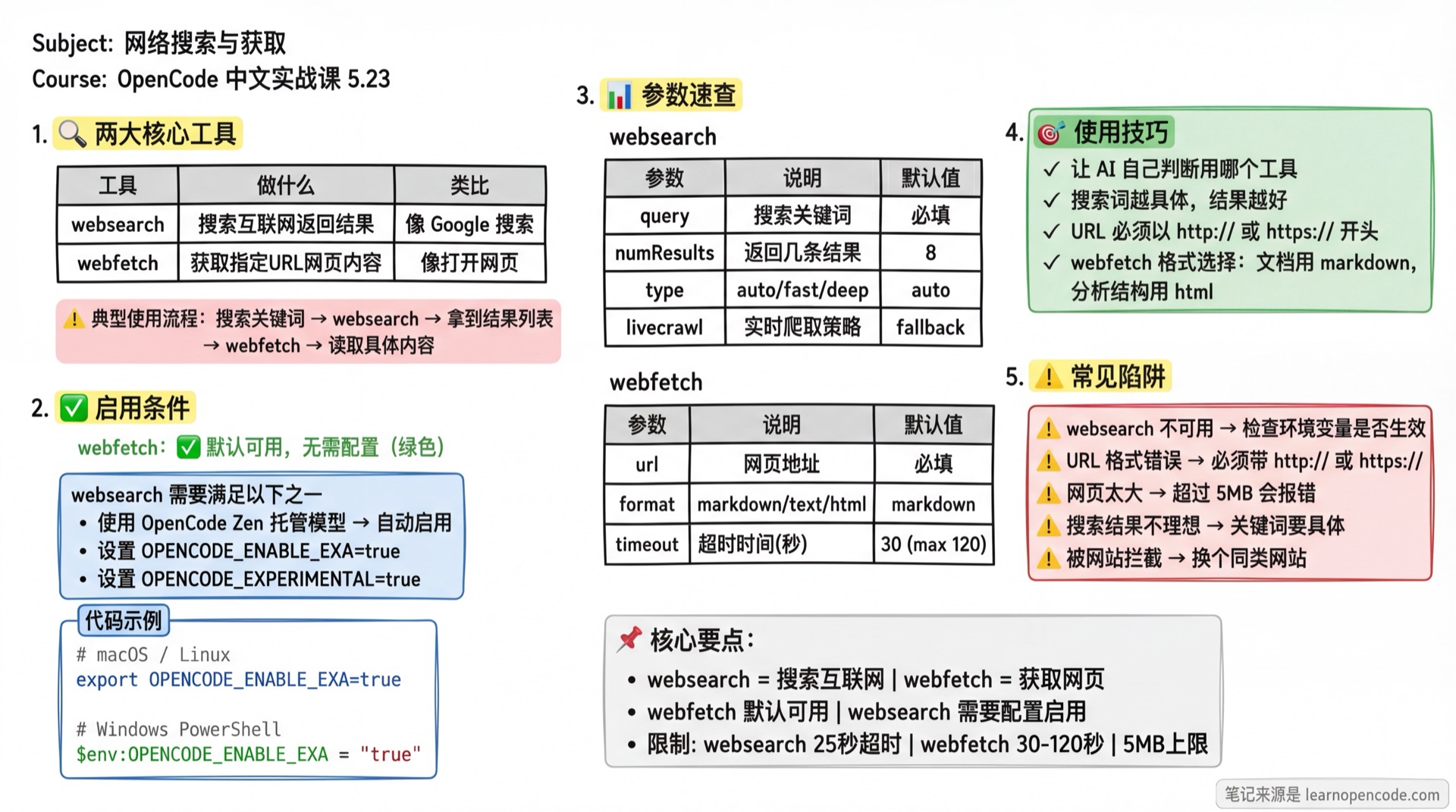
What You'll Learn
🎯 Lesson Objectives
- Let AI search for the latest technical documentation and solutions
- Let AI read and summarize specific webpage content
- Choose appropriate search parameters and output formats as needed
Your Current Challenge
You may have encountered these situations:
- Ask AI about the latest usage of a library, but get answers from six months ago
- Want AI to read an English document for you, but it says "I can't access web pages"
- Encounter an error, want AI to search for solutions, but it can only rely on "memory"
AI models have knowledge cutoff dates. Web Search & Fetch gives AI "eyes" to see the latest internet information.
When to Use This
- Check the latest API documentation or framework version changes
- Let AI read a specific webpage (GitHub README, tech blog, official documentation)
- Search for solutions to an error message
- Research an unfamiliar technical approach
🎒 Prerequisites
- [x] Completed Quick Start
- [x] Understand OpenCode basic operations
⚠️ websearch Requires Extra Setup
webfetch (fetch webpage) is available by default, no extra configuration needed.
But websearch (search the web) requires one of the following conditions:
- Use OpenCode Zen hosted models (automatically enabled)
- Set environment variable
OPENCODE_ENABLE_EXA=true - Set environment variable
OPENCODE_EXPERIMENTAL=true(enables multiple experimental features)
If you're not sure whether you can use websearch, just try it in OpenCode. Tools AI can't use won't appear in its tool list.
Core Concept
OpenCode provides two web tools with clear分工:
| Tool | What It Does | Analogy |
|---|---|---|
websearch | Search the internet, return result list | Like using Google search |
webfetch | Fetch webpage content from a specific URL | Like opening a page in browser |
Typical workflow:
You: Check what's new in React 19

AI's operations:
  1. websearch "React 19 new features"  → Get search results
  2. webfetch a result URL              → Read specific page content
  3. Organize and reply to you
You don't need to manually tell AI which tool to use. Just ask normally. AI will decide whether to search or fetch.
Follow Along
Step 1: Enable websearch (Non-Zen Users)
If you're using Zen hosted models, skip this step - websearch is already enabled.
Other users need to set environment variables:
# macOS / Linux: Add to ~/.bashrc or ~/.zshrc
export OPENCODE_ENABLE_EXA=true

# Then reopen terminal, or run
source ~/.zshrc# Windows PowerShell
$env:OPENCODE_ENABLE_EXA = "true"You should see: After restarting OpenCode, AI can use the websearch tool.
Step 2: Try Web Search
Open OpenCode and enter a question requiring latest information:
Check what's new in the latest Bun versionYou should see: AI will call the websearch tool, showing output like:
⠋ websearch("Bun latest version new features 2026")

Web search: Bun latest version new features 2026

1. Bun v1.x: What's New
   URL: https://bun.sh/blog/...
   ...

2. Bun Release Notes
   URL: https://github.com/oven-sh/bun/releases
   ...
Then AI will give you a summary based on the search results.
Step 3: Try Web Fetch
If you already know which page to read, let AI fetch it directly:
Read the content of this page: https://bun.sh/docs/installationYou should see: AI will call the webfetch tool, fetch the page content and summarize it for you.
💡 webfetch Use Cases
- "Read this GitHub README for me" — Let AI quickly understand a project
- "Translate the key points of this English document" — AI reads and translates directly
- "Compare the content of these two pages" — Give two URLs, AI fetches both and compares
Step 4: Combine Both
Search and fetch can be chained together. For example:
I encountered "TypeError: Cannot read properties of undefined" error,
search for the latest solutions, find the most relevant article and summarize the key points
You should see: AI will first search, find relevant articles, then use webfetch to read specific content, and finally organize it for you.
websearch Parameters Reference
You don't need to manually pass these parameters - AI will choose automatically. But understanding them helps you give more precise instructions in your prompts.
| Parameter | Description | Default |
|---|---|---|
query | Search keywords | Required |
numResults | Number of results to return | 8 |
type | Search depth | auto |
livecrawl | Real-time crawl: fallback (crawl when cache unavailable) / preferred (prefer real-time crawl) | fallback |
contextMaxCharacters | Maximum context characters | 10000 (Exa API default) |
Search Depth
| Type | Description | Best For |
|---|---|---|
auto | Balanced mode (default) | Most situations |
fast | Quick return | Simple questions, need speed |
deep | Deep search | Complex questions, need comprehensive results |
💡 How to Influence Search Depth?
You can hint in your prompt, for example:
- "Quick check" — AI might choose
fast - "Do a deep research" — AI might choose
deep
webfetch Parameters Reference
| Parameter | Description | Default |
|---|---|---|
url | Webpage URL to fetch | Required |
format | Output format | markdown |
timeout | Timeout in seconds | 30 (max 120) |
Output Format Options
| Format | Description | Best For |
|---|---|---|
markdown | Convert to Markdown (default) | Documentation, blogs, READMEs |
text | Plain text | Just need text content, no formatting |
html | Raw HTML | Need to analyze page structure |
Most of the time, the default markdown is sufficient. AI will automatically convert HTML pages to well-structured Markdown.
Checkpoint ✅
Try to answer these questions:
- [ ] What do websearch and webfetch do respectively?
- [ ] How do non-Zen users enable websearch?
- [ ] What three output formats does webfetch support?
Click to see answers
websearchsearches the internet and returns result list,webfetchfetches webpage content from a specified URL- Set environment variable
OPENCODE_ENABLE_EXA=true(orOPENCODE_EXPERIMENTAL=true) markdown(default),text,html
Common Pitfalls
1. websearch Unavailable
If AI doesn't use websearch, it might not be enabled.
| Your Situation | Solution |
|---|---|
| Using Zen hosted models | Should be automatically available, check network connection |
| Using your own API Key | Set OPENCODE_ENABLE_EXA=true then restart |
| Set environment variable but still not working | Verify variable is set: echo $OPENCODE_ENABLE_EXA |
2. URL Format Error
❌ Missing protocol
Read example.com/page for me✅ Provide complete URL
Read https://example.com/page for mewebfetch requires URLs to start with http:// or https://.
3. Webpage Too Large
webfetch has a 5MB size limit. If the target page is too large (like a huge PDF), it will error with Response too large.
In this case, try letting AI fetch a more specific page instead of the entire large file.
4. Poor Search Results
❌ Too vague
Search React for me✅ Be specific
Search React 19 useOptimistic hook usage and examplesThe more specific your search keywords, the better the results.
5. Blocked by Website
Some websites block automated requests (like Cloudflare protection). When OpenCode detects Cloudflare blocking, it will automatically retry with an honest User-Agent, but it doesn't always succeed.
If you encounter a 403 error, try:
- Use a URL from a similar website
- Let AI search for the same content from other sources
Lesson Summary
| Tool | What It Does | Available by Default |
|---|---|---|
webfetch | Fetch specified webpage content | ✅ Yes |
websearch | Search the internet | ⚠️ Requires Zen or environment variable |
Remember these limits:
- websearch timeout: 25 seconds
- webfetch timeout: 30 seconds (default), max 120 seconds
- webfetch size limit: 5MB
You don't need to memorize parameters for daily use. Just ask normally. AI will decide whether to search or fetch and choose appropriate parameters.
Next Lesson Preview
Next lesson: CLI Automation
You'll learn:
- Call OpenCode in scripts without manual intervention
- Start remote servers for team-shared AI sessions
- Embed OpenCode in CI/CD pipelines
Appendix: Source Code Reference
Click to expand source code locations
Last updated: 2026-02-14
| Feature | File Path | Lines |
|---|---|---|
| websearch tool definition | src/tool/websearch.ts | 40-150 |
| websearch parameter Schema | src/tool/websearch.ts | 45-64 |
| webfetch tool definition | src/tool/webfetch.ts | 12-166 |
| webfetch parameter Schema | src/tool/webfetch.ts | 14-21 |
| webfetch size and timeout limits | src/tool/webfetch.ts | 8-10 |
| websearch/codesearch enable conditions | src/tool/registry.ts | 137-139 |
| OPENCODE_ENABLE_EXA flag | src/flag/flag.ts | 44-45 |
| Cloudflare 403 retry logic | src/tool/webfetch.ts | 68-72 |
| HTML to Markdown conversion | src/tool/webfetch.ts | 200-210 |
Key Constants:
API_CONFIG.BASE_URL = "https://mcp.exa.ai"— Exa search API addressAPI_CONFIG.DEFAULT_NUM_RESULTS = 8— Default number of search resultsMAX_RESPONSE_SIZE = 5 * 1024 * 1024— webfetch max response 5MBDEFAULT_TIMEOUT = 30 * 1000— webfetch default timeout 30 secondsMAX_TIMEOUT = 120 * 1000— webfetch max timeout 120 seconds
Key Functions:
abortAfterAny(timeout, signal)— Timeout control (websearch 25 seconds, webfetch configurable)convertHTMLToMarkdown(html)— Use Turndown to convert HTML to MarkdownextractTextFromHTML(html)— Use HTMLRewriter to extract plain text
Enable Condition Logic (registry.ts L137-139):
websearch/codesearch available when:
  model.providerID === "opencode" (Zen users)
  OR Flag.OPENCODE_ENABLE_EXA === true
OPENCODE_ENABLE_EXA triggers (flag.ts L44-45):
OPENCODE_ENABLE_EXA=trueOPENCODE_EXPERIMENTAL=true(enables all experimental features)OPENCODE_EXPERIMENTAL_EXA=true