

Keyboard Shortcuts Reference
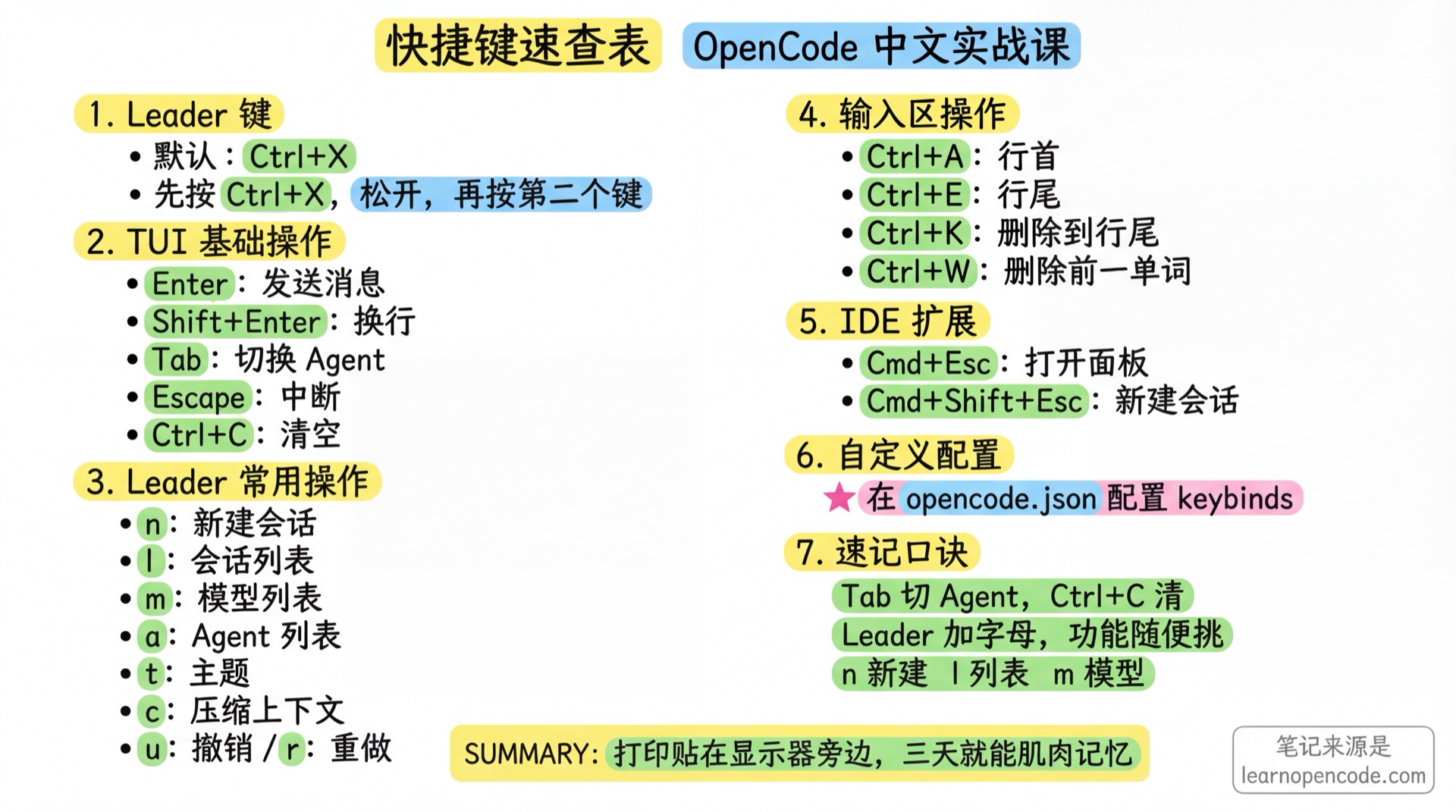
Print this page and stick it next to your monitor - muscle memory in three days
📝 Course Notes
Key takeaways from this lesson:
Leader Key
OpenCode uses a Leader Key to avoid conflicts with terminal shortcuts.
Default Leader Key: Ctrl+X
Usage: Press Ctrl+X, release, then press the second key.
TUI Shortcuts
Basic Operations
| Shortcut | Action | Description |
|---|---|---|
Enter | Send message | Send current input |
Shift+Enter | New line | Add newline in input box |
Tab | Switch Agent | Cycle through primary agents |
Shift+Tab | Reverse switch | Reverse cycle through primary agents |
Escape | Interrupt | Stop current AI response |
Ctrl+C | Clear input | Clear input box content |
Ctrl+D | Exit | Close OpenCode |
Ctrl+P | Command list | Open command palette |
Leader Key Operations
| Shortcut | Action | Description |
|---|---|---|
Leader → n | New session | Same as /new |
Leader → l | Session list | Same as /sessions |
Leader → m | Model list | Same as /models |
Leader → a | Agent list | Select Agent |
Leader → t | Theme list | Same as /themes |
Leader → e | Editor | Open external editor |
Leader → c | Compact | Compact current session context |
Leader → u | Undo | Undo last change |
Leader → r | Redo | Redo last undo |
Leader → x | Export | Export current session |
Leader → s | Status | View status |
Leader → b | Sidebar | Toggle sidebar display |
Leader → g | Timeline | Session timeline |
Leader → y | Copy | Copy message |
Leader → h | Hide details | Toggle details display |
Leader → q | Quit | Close OpenCode |
Ctrl+B | Run in background | Move a synchronously running sub-Agent into the background |
Diff Viewer
Enter /diff or open the diff viewer from the command palette. diff_open has no default binding, but you can configure one. The viewer is enabled by default and supports a file tree, file and hunk navigation, single or all patches, unified and split views, workspace changes, and changes from the latest AI turn. When the current branch is not the default branch, you can also compare it with the main branch.
| Shortcut | Action |
|---|---|
Esc / q | Close and return to the previous screen |
Tab | Switch focus between the file tree and patch pane |
] / [ | Next/previous hunk |
n / p | Next/previous file |
b | Show/hide the file tree |
s | Switch between a single patch and all patches |
d | Switch diff source |
v | Switch between split and unified views |
m | Mark or unmark a file as reviewed |
? | Show full help |
Session Navigation
| Shortcut | Action | Description |
|---|---|---|
→ | Child session | Switch to child Agent session |
← | Reverse child | Reverse cycle child sessions |
↑ | Parent session | Return to parent session |
Message Scrolling
| Shortcut | Action |
|---|---|
Page Up | Scroll up one page |
Page Down | Scroll down one page |
Ctrl+Alt+U | Scroll up half page |
Ctrl+Alt+D | Scroll down half page |
Ctrl+G / Home | Jump to top |
Ctrl+Alt+G / End | Jump to bottom |
Input Area Operations
| Shortcut | Action |
|---|---|
Ctrl+A | Move cursor to line start |
Ctrl+E | Move cursor to line end |
Ctrl+B | Move cursor back one character |
Ctrl+F | Move cursor forward one character |
Alt+B | Move cursor back one word |
Alt+F | Move cursor forward one word |
Ctrl+K | Delete to end of line |
Ctrl+U | Delete to start of line |
Ctrl+W | Delete previous word |
Alt+D | Delete next word |
Ctrl+D | Delete current character |
↑ / ↓ | Browse input history |
Model Switching
| Shortcut | Action |
|---|---|
F2 | Cycle recent models |
Shift+F2 | Reverse cycle |
Ctrl+T | Cycle variants |
Permission Confirmation
| Shortcut | Action |
|---|---|
y | Allow |
n | Deny |
a | Always allow (this session) |
IDE Extension Shortcuts
VS Code / Cursor
| Shortcut (macOS) | Shortcut (Win/Linux) | Action |
|---|---|---|
Cmd+Esc | Ctrl+Esc | Open OpenCode panel |
Cmd+Shift+Esc | Ctrl+Shift+Esc | New session |
Cmd+Option+K | Alt+Ctrl+K | Insert file reference |
Desktop Input Shortcuts
The OpenCode desktop app input supports Readline/Emacs-style shortcuts. These are built in and cannot be configured through opencode.json:
| Shortcut | Action |
|---|---|
Ctrl+A | Move to line start |
Ctrl+E | Move to line end |
Ctrl+B | Move cursor back one character |
Ctrl+F | Move cursor forward one character |
Alt+B | Move cursor back one word |
Alt+F | Move cursor forward one word |
Ctrl+D | Delete character under cursor |
Ctrl+K | Delete to end of line |
Ctrl+U | Delete to start of line |
Ctrl+W | Delete previous word |
Alt+D | Delete next word |
Ctrl+T | Transpose characters |
Ctrl+G | Cancel popup / interrupt response |
Custom Shortcuts
Configure a flat keybinds map in the standalone tui.json or tui.jsonc:
{
  "$schema": "https://opencode.ai/tui.json",
  "keybinds": {
    "leader": "ctrl+x",
    "session_new": "<leader>n",
    "session_list": "<leader>l",
    "model_list": "<leader>m"
  }
}
Disable Shortcuts
Set a binding to "none" or false to disable it:
{
  "keybinds": {
    "session_compact": false
  }
}
Multiple Key Bindings
Separate multiple keys with commas:
{
  "keybinds": {
    "app_exit": "ctrl+c,ctrl+d,<leader>q"
  }
}
Configuration Locations and Migration
The loading order is: the global configuration directory, OPENCODE_TUI_CONFIG, ordinary project tui.json / tui.jsonc, .opencode directories along the path, and OPENCODE_CONFIG_DIR. Later sources take priority. Ordinary project files are applied from the root side toward the current directory, so the nearest one wins. Multiple .opencode directories are merged from the current side toward the root, so on conflicts the rootmost directory is loaded later and wins. OPENCODE_CONFIG_DIR is loaded last.
During an upgrade, starting the TUI checks the global configuration, project configurations found along the path, configuration directories, and the old main configuration specified by OPENCODE_CONFIG. It migrates their theme, keybinds, and tui fields into a tui.json in the same directory. Migration is skipped if the target tui.json exists; a tui.jsonc alone does not block migration. Old fields are removed only after the new file has been written and a .tui-migration.bak has been created or reused. The main configuration no longer reads these fields.
Cursor Appearance
cursor is a sibling of keybinds. Its style supports block, underline, line, and default; blinking controls whether it blinks. default preserves the terminal setting and ignores blinking.
Common Configurable Key Bindings
Source: v1.18.22
keybind.tsNew entries: background sessions, Skills, and cursor
Basic Bindings
| Key Name | Default | Description |
|---|---|---|
leader | ctrl+x | Leader key |
app_exit | ctrl+c,ctrl+d,<leader>q | Exit |
diff_open | none | Open the diff viewer |
Session Management
| Key Name | Default | Description |
|---|---|---|
session_new | <leader>n | New session |
session_list | <leader>l | Session list |
session_export | <leader>x | Export session |
session_interrupt | escape | Interrupt response |
session_background | ctrl+b | Move a synchronous sub-Agent into the background |
session_compact | <leader>c | Compact context |
session_timeline | <leader>g | Timeline |
session_child_cycle | right | Cycle child sessions |
session_child_cycle_reverse | left | Reverse cycle child sessions |
session_parent | up | Return to parent session |
session_fork | none | Fork session |
session_rename | ctrl+r | Rename session |
session_delete | ctrl+d | Delete session |
session_share | none | Share session |
session_unshare | none | Unshare session |
Model & Agent
| Key Name | Default | Description |
|---|---|---|
model_list | <leader>m | Model list |
model_cycle_recent | f2 | Cycle recent models |
model_cycle_recent_reverse | shift+f2 | Reverse cycle recent models |
model_cycle_favorite | none | Cycle favorite models |
model_cycle_favorite_reverse | none | Reverse cycle favorite models |
variant_cycle | ctrl+t | Cycle model variants |
agent_list | <leader>a | Agent list |
agent_cycle | tab | Cycle agents |
agent_cycle_reverse | shift+tab | Reverse cycle agents |
prompt_skills | none | Open the Skill picker |
Diff Viewer
| Key Name | Default | Description |
|---|---|---|
diff_close | escape,q | Close the viewer |
diff_toggle | enter,space | Expand or select an item |
diff_expand / diff_collapse | right / left | Expand or collapse an item |
diff_expand_all | E | Expand all directories |
diff_switch_focus | tab | Switch focus |
diff_next_hunk / diff_previous_hunk | ] / [ | Next/previous hunk |
diff_next_file / diff_previous_file | n / p | Next/previous file |
diff_toggle_file_tree | b | Toggle the file tree |
diff_single_patch | s | Switch between one and all patches |
diff_switch_source | d | Switch source |
diff_toggle_view | v | Switch between split and unified views |
diff_help | ? | Show help |
m is the viewer's built-in “mark as reviewed” shortcut and is not a keybinds setting.
Interface Control
| Key Name | Default | Description |
|---|---|---|
theme_list | <leader>t | Theme list |
editor_open | <leader>e | Open editor |
sidebar_toggle | <leader>b | Toggle sidebar |
scrollbar_toggle | none | Toggle scrollbar |
status_view | <leader>s | Status view |
tool_details | none | Tool details |
command_list | ctrl+p | Command palette |
tips_toggle | <leader>h | Toggle tips display |
Message Operations
| Key Name | Default | Description |
|---|---|---|
messages_undo | <leader>u | Undo |
messages_redo | <leader>r | Redo |
messages_copy | <leader>y | Copy |
messages_toggle_conceal | <leader>h | Toggle detail hiding |
messages_next | none | Next message |
messages_previous | none | Previous message |
messages_last_user | none | Jump to last user message |
messages_page_up | pageup,ctrl+alt+b | Page up |
messages_page_down | pagedown,ctrl+alt+f | Page down |
messages_half_page_up | ctrl+alt+u | Half page up |
messages_half_page_down | ctrl+alt+d | Half page down |
messages_first | ctrl+g,home | Jump to top |
messages_last | ctrl+alt+g,end | Jump to bottom |
Input Box Operations
| Key Name | Default | Description |
|---|---|---|
input_submit | return | Submit |
input_newline | shift+return,ctrl+return,alt+return,ctrl+j | New line |
input_clear | ctrl+c | Clear input |
input_paste | ctrl+v | Paste |
input_move_left | left,ctrl+b | Move cursor left |
input_move_right | right,ctrl+f | Move cursor right |
input_move_up | up | Move cursor up |
input_move_down | down | Move cursor down |
input_select_left | shift+left | Select left |
input_select_right | shift+right | Select right |
input_select_up | shift+up | Select up |
input_select_down | shift+down | Select down |
input_line_home | ctrl+a | Line start |
input_line_end | ctrl+e | Line end |
input_select_line_home | ctrl+shift+a | Select to line start |
input_select_line_end | ctrl+shift+e | Select to line end |
input_visual_line_home | alt+a | Visual line start |
input_visual_line_end | alt+e | Visual line end |
input_select_visual_line_home | alt+shift+a | Select to visual line start |
input_select_visual_line_end | alt+shift+e | Select to visual line end |
input_buffer_home | home | Buffer start |
input_buffer_end | end | Buffer end |
input_select_buffer_home | shift+home | Select to buffer start |
input_select_buffer_end | shift+end | Select to buffer end |
input_delete_line | ctrl+shift+d | Delete line |
input_delete_to_line_end | ctrl+k | Delete to line end |
input_delete_to_line_start | ctrl+u | Delete to line start |
input_backspace | backspace,shift+backspace | Backspace |
input_delete | ctrl+d,delete,shift+delete | Delete |
input_undo | ctrl+-,super+z | Undo input |
input_redo | ctrl+.,super+shift+z | Redo input |
input_word_forward | alt+f,alt+right,ctrl+right | Next word |
input_word_backward | alt+b,alt+left,ctrl+left | Previous word |
input_select_word_forward | alt+shift+f,alt+shift+right | Select next word |
input_select_word_backward | alt+shift+b,alt+shift+left | Select previous word |
input_delete_word_forward | alt+d,alt+delete,ctrl+delete | Delete next word |
input_delete_word_backward | ctrl+w,ctrl+backspace,alt+backspace | Delete previous word |
History & Terminal
| Key Name | Default | Description |
|---|---|---|
history_previous | up | Previous history |
history_next | down | Next history |
terminal_suspend | ctrl+z | Suspend terminal |
terminal_title_toggle | none | Toggle terminal title |
Shift+Enter Configuration
Some terminals don't send Shift+Enter by default.
Windows Terminal Configuration
Edit settings.json:
{
  "actions": [
    {
      "command": {
        "action": "sendInput",
        "input": "\u001b[13;2u"
      },
      "id": "User.sendInput.ShiftEnterCustom"
    }
  ],
  "keybindings": [
    {
      "keys": "shift+enter",
      "id": "User.sendInput.ShiftEnterCustom"
    }
  ]
}
Quick Mnemonic
Tab switches Agents, Ctrl+C clears
Leader plus letters, functions appear
n for new, l for list, m for models
u for undo, r for redo, no worries
Arrow keys left and right, child sessions go back and forth
Related Resources
- v1.18.22 TUI configuration loading - Configuration locations and priority
- v1.18.22 TUI configuration migration - Automatic migration and skip conditions
- v1.18.22 diff viewer - Current navigation, view, and source capabilities
- Configuration Reference - Complete configuration guide
- 5.6b Keybinds - Keybind customization tutorial
- 5.6a Themes - Theme customization tutorial