

自定义工具
📝 课程笔记
本课核心知识点整理:
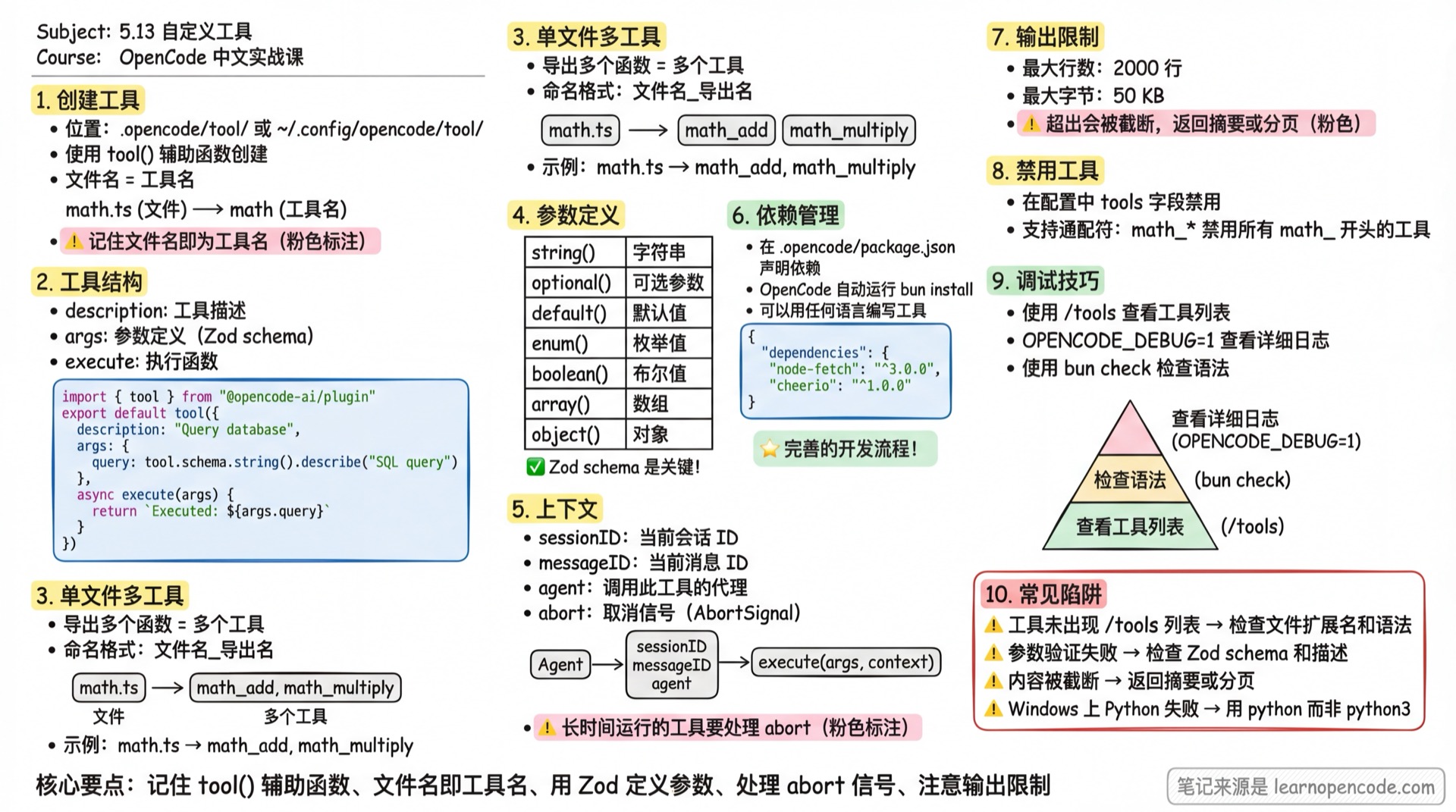
自定义工具是你创建的函数,LLM 可以在对话中调用它们。它们与 OpenCode 的内置工具(如 read、write、bash)并行工作。
创建工具
工具定义为 TypeScript 或 JavaScript 文件。但工具定义可以调用任何语言编写的脚本——TypeScript/JavaScript 只用于工具定义本身。
位置
工具可以放置在:
- 项目级:
.opencode/tool/目录 - 全局级:
~/.config/opencode/tool/目录
结构
使用 tool() 辅助函数创建工具,提供类型安全和验证:
// .opencode/tool/database.ts
import { tool } from "@opencode-ai/plugin"

export default tool({
  description: "Query the project database",
  args: {
    query: tool.schema.string().describe("SQL query to execute"),
  },
  async execute(args) {
    // 数据库逻辑
    return `Executed query: ${args.query}`
  },
})文件名即为工具名。上面的示例创建了一个 database 工具。
单文件多工具
可以从单个文件导出多个工具。每个导出成为一个独立工具,名称格式为 <文件名>_<导出名>:
// .opencode/tool/math.ts
import { tool } from "@opencode-ai/plugin"

export const add = tool({
  description: "Add two numbers",
  args: {
    a: tool.schema.number().describe("First number"),
    b: tool.schema.number().describe("Second number"),
  },
  async execute(args) {
    return args.a + args.b
  },
})

export const multiply = tool({
  description: "Multiply two numbers",
  args: {
    a: tool.schema.number().describe("First number"),
    b: tool.schema.number().describe("Second number"),
  },
  async execute(args) {
    return args.a * args.b
  },
})这创建了两个工具:math_add 和 math_multiply。
与内置工具同名
自定义工具按工具名索引。如果自定义工具使用与内置工具相同的名称,自定义工具优先。
例如,这个文件会替换内置的 bash 工具:
import { tool } from "@opencode-ai/plugin"

export default tool({
  description: "受限的 bash 封装",
  args: {
    command: tool.schema.string().describe("要执行的命令"),
  },
  async execute(args) {
    // 拦截危险命令
    const blocked = ["rm -rf", "sudo", "mkfs"]
    for (const cmd of blocked) {
      if (args.command.includes(cmd)) {
        return `⛔ 已拦截危险命令: ${args.command}`
      }
    }
    // 执行其他命令...
    return `执行: ${args.command}`
  },
})
💡 使用建议
- 除非有意替换,否则使用唯一的工具名,避免与内置工具冲突
- 想禁用内置工具而非替换?使用 权限配置 而非同名覆盖
- 想增强内置工具?可以在自定义工具中调用原有逻辑(通过
Bun.$执行命令)
参数定义
使用 tool.schema(即 Zod)定义参数类型:
args: {
  query: tool.schema.string().describe("SQL query to execute")
}
常用类型示例:
import { tool } from "@opencode-ai/plugin"

export default tool({
  description: "Demo of parameter types",
  args: {
    // 字符串
    name: tool.schema.string().describe("User name"),

    // 可选参数
    email: tool.schema.string().email().optional().describe("Optional email"),

    // 带默认值
    limit: tool.schema.number().default(10).describe("Max results"),

    // 枚举
    status: tool.schema.enum(["pending", "done"]).describe("Task status"),

    // 布尔
    verbose: tool.schema.boolean().describe("Enable verbose output"),

    // 数组
    tags: tool.schema.array(tool.schema.string()).describe("List of tags"),

    // 对象
    config: tool.schema.object({
      host: tool.schema.string(),
      port: tool.schema.number(),
    }).describe("Server config"),
  },
  async execute(args) {
    return JSON.stringify(args, null, 2)
  },
})
也可以直接导入 Zod 并返回普通对象:
import { z } from "zod"

export default {
  description: "Tool description",
  args: {
    param: z.string().describe("Parameter description"),
  },
  async execute(args, context) {
    // 工具实现
    return "result"
  },
}
上下文
工具可以接收当前会话的上下文信息:
// .opencode/tool/project.ts
import { tool } from "@opencode-ai/plugin"

export default tool({
  description: "Get project information",
  args: {},
  async execute(args, context) {
    // 访问上下文信息
    const { agent, sessionID, messageID, abort } = context
    return `Agent: ${agent}, Session: ${sessionID}, Message: ${messageID}`
  },
})
上下文包含以下字段:
| 字段 | 类型 | 说明 |
|---|---|---|
sessionID | string | 当前会话 ID |
messageID | string | 当前消息 ID |
agent | string | 调用此工具的代理名称 |
directory | string | 当前项目目录(解析相对路径时优先使用) |
worktree | string | 项目的 worktree 根目录 |
abort | AbortSignal | 用于检测用户取消操作 |
处理取消操作
当用户取消操作(如按 Ctrl+C)时,abort 信号会被触发。对于长时间运行的工具,应监听此信号并及时退出:
// .opencode/tool/long-task.ts
import { tool } from "@opencode-ai/plugin"

export default tool({
  description: "A long-running task",
  args: {},
  async execute(args, context) {
    // 检查是否已取消
    if (context.abort.aborted) {
      return "Task cancelled"
    }

    // 传递给支持 AbortSignal 的 API
    const response = await fetch("https://api.example.com/data", {
      signal: context.abort,
    })

    return await response.text()
  },
})
依赖项
自定义工具可以使用外部 npm 包。在配置目录添加 package.json 声明依赖:
// .opencode/package.json
{
  "dependencies": {
    "node-fetch": "^3.0.0",
    "cheerio": "^1.0.0"
  }
}
OpenCode 启动时会自动运行 bun install 安装这些依赖。然后工具可以导入使用:
// .opencode/tool/scraper.ts
import { tool } from "@opencode-ai/plugin"
import * as cheerio from "cheerio"

export default tool({
  description: "Extract text from a webpage",
  args: {
    url: tool.schema.string().url().describe("URL to scrape"),
  },
  async execute(args, context) {
    const response = await fetch(args.url, { signal: context.abort })
    const html = await response.text()
    const $ = cheerio.load(html)
    return $("body").text().trim()
  },
})
示例
用 Python 编写工具
你可以用任何语言编写工具。以下示例使用 Python 实现两数相加。
首先,创建 Python 脚本:
# .opencode/tool/add.py
import sys

a = int(sys.argv[1])
b = int(sys.argv[2])
print(a + b)
然后创建调用它的工具定义:
// .opencode/tool/python-add.ts
import { tool } from "@opencode-ai/plugin"

export default tool({
  description: "Add two numbers using Python",
  args: {
    a: tool.schema.number().describe("First number"),
    b: tool.schema.number().describe("Second number"),
  },
  async execute(args) {
    const result = await Bun.$`python3 .opencode/tool/add.py ${args.a} ${args.b}`.text()
    return result.trim()
  },
})
这里使用 Bun.$ 工具运行 Python 脚本。
调用 HTTP API
实际项目中常见的工具是封装 HTTP API 调用:
// .opencode/tool/jira.ts
import { tool } from "@opencode-ai/plugin"

export const getIssue = tool({
  description: "Get JIRA issue details by key",
  args: {
    key: tool.schema.string().describe("Issue key, e.g. PROJ-123"),
  },
  async execute(args, context) {
    const response = await fetch(
      `https://your-company.atlassian.net/rest/api/3/issue/${args.key}`,
      {
        headers: {
          Authorization: `Basic ${btoa("email@example.com:API_TOKEN")}`,
          Accept: "application/json",
        },
        signal: context.abort,
      }
    )

    if (!response.ok) {
      throw new Error(`Failed to fetch issue: ${response.status}`)
    }

    const issue = await response.json()
    return JSON.stringify(issue, null, 2)
  },
})
生产环境中,API Token 应从环境变量读取而非硬编码。
输出限制
工具返回值会被自动截断以避免上下文溢出:
| 限制 | 值 |
|---|---|
| 最大行数 | 2000 行 |
| 最大字节 | 50 KB |
超出限制时,OpenCode 会在末尾添加 ...N lines truncated... 或 ...N chars truncated... 提示。
如果你的工具需要返回大量数据,建议:
- 返回摘要 - 只返回关键信息,将完整数据写入文件
- 分页处理 - 添加分页参数,每次返回部分结果
- 结构化输出 - 返回 JSON 格式便于 LLM 解析
禁用自定义工具
自定义工具也可以通过 tools 配置禁用:
{
  "$schema": "https://opencode.ai/config.json",
  "tools": {
    "database": false,
    "math_*": false
  }
}支持通配符模式,math_* 会禁用所有以 math_ 开头的工具(如 math_add、math_multiply)。
调试与验证
确认工具加载成功
启动 OpenCode 后,使用 /tools 命令查看所有可用工具列表,确认自定义工具出现在列表中。
常见调试方法
- 查看日志 - 工具加载错误会记录在日志中,使用
OPENCODE_DEBUG=1启动可查看详细日志 - 测试执行 - 在对话中直接要求 LLM 调用工具,观察返回结果
- 语法检查 - 使用
bun check .opencode/tool/your-tool.ts检查 TypeScript 语法
工具与插件的区别
| 特性 | 自定义工具 | 插件中的工具 |
|---|---|---|
| 用途 | 供 LLM 调用的功能 | 扩展 OpenCode 行为 + 工具 |
| 位置 | .opencode/tool/ | .opencode/plugin/ |
| 命名规则 | <文件名> 或 <文件名>_<导出名> | 在 tool 对象中直接指定 |
| 适用场景 | 简单的独立功能 | 需要访问插件上下文或组合多种钩子 |
如需在插件中定义工具,请参考 插件开发。
踩坑提醒
| 现象 | 原因 | 解决 |
|---|---|---|
工具未出现在 /tools 列表 | 文件扩展名错误或语法错误 | 确保使用 .ts 或 .js 扩展名,检查 TypeScript 语法 |
| 工具调用时参数验证失败 | Zod schema 定义不匹配 | 确保 .describe() 描述清晰,LLM 能理解参数含义 |
| 工具返回内容被截断 | 返回超过 2000 行或 50KB | 返回摘要或分页,完整数据写入文件 |
| 工具调用超时 | 长时间运行的任务未处理 abort | 使用 context.abort 信号支持取消 |
| 依赖包找不到 | 未在 .opencode/package.json 声明 | 添加依赖并重启 OpenCode |
| Windows 上 Python 工具失败 | 命令 python3 不存在 | 使用 python 或检测平台动态选择 |
| 工具名与内置工具同名 | 自定义工具会覆盖同名内置工具 | 如需禁用内置工具,用权限配置而非同名覆盖 |